How to Test Satellite-to-Mobile Safety Coverage with GetHomeSafe: A Practical Guide
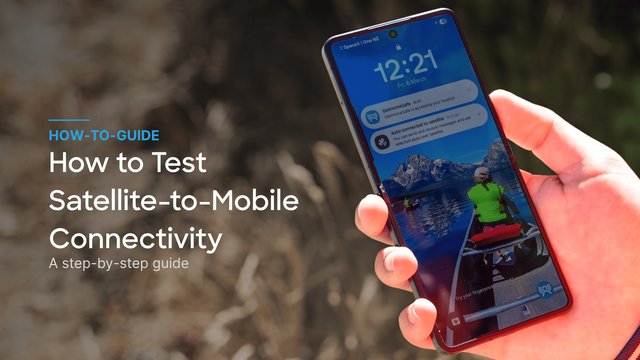

Your team is about to head into a coverage black spot for the first time since satellite-to-mobile (STM) went live on their phones. Before they do, you want to know one thing: will it actually work when it matters?
The good news is you don't have to wait for a real emergency to find out. STM can be tested properly, in the field, in a few simple steps, using the phone your team already carries, and the GetHomeSafe app they already use.
STM is rolling out across all the regions GetHomeSafe serves, New Zealand, Australia, Canada, the UK, and the US, as mobile carriers switch on satellite connectivity. New Zealand's carriers are currently leading the way on this technology, and GetHomeSafe has partnered with OneNZ and Spark NZ as a result, but the testing process below applies wherever you're based: it's simply a matter of checking what your local carrier and device support.
Here's exactly how to do it.
Key takeaways
- Satellite-to-mobile (STM) turns everyday smartphones into satellite safety devices, no separate satellite phone required.
- GetHomeSafe works seamlessly over STM: live location tracking, "I am OK" check-ins, and panic alerts all continue to function when mobile coverage disappears.
- STM is expanding across New Zealand, Australia, Canada, the UK, and the US, as local carriers switch it on. New Zealand's carriers are furthest ahead, which is why GetHomeSafe has partnered with One NZ and Spark NZ, but the same testing approach applies wherever you're operating.
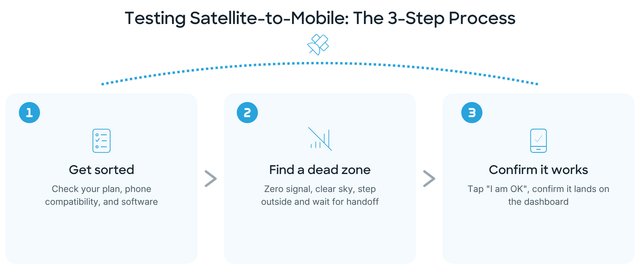
- Testing STM properly means checking your plan, phone compatibility, and software before you leave Wi-Fi, then heading to a genuine dead zone to confirm the handoff.
- You can't test STM in Flight Mode. You need a real coverage gap and a clear view of the sky.
- STM is built for critical, low-bandwidth safety data. Expect it to handle check-ins and alerts flawlessly, but not photo uploads or document viewing.
Why testing STM matters
Historically, keeping a lone worker connected off-grid meant issuing a dedicated satellite phone: expensive, bulky, and rarely justified for every staff member. Satellite-to-mobile changes that. Powered by low-earth orbit (LEO) Starlink satellites and supported by One NZ and Spark NZ, it lets a standard smartphone connect to space the moment the local mobile mast is out of reach.
For health and safety managers, that closes a long-standing blind spot. Instead of a manual check-in just before a worker disappears off the grid, followed by a tense wait until they reappear, GetHomeSafe paired with STM keeps a continuous digital breadcrumb trail running. If a vehicle breaks down on a remote forestry track or a worker takes a fall, the alert goes out immediately, not hours later.
Running a proper test before you rely on it in a genuine emergency, means you can trust it will do its job when your team needs it most.
Book a demoStep 1: Sort your tech before you leave Wi-Fi
Do this part at the office or at home, while you've still got a normal connection. You won't need new satellite dishes or specialised antennas, but you do need the right foundation in place.
- Check your mobile plan. Confirm your plan includes satellite connectivity. Not all plans do by default, and availability depends on your carrier and region. In New Zealand, this means One NZ or Spark NZ; elsewhere, check with your local carrier on their satellite rollout.
- Confirm your phone is compatible. Your device needs the built-in hardware to detect satellite signals. Check your provider's list of supported devices, for example:
- One NZ compatibility
- Spark NZ compatibility
- If you're outside New Zealand, your carrier's website will list which of their plans and devices currently support satellite connectivity.
- Update your phone's software. Update your operating system and network settings while you still have Wi-Fi. Outdated network settings mean your phone won't know how to look for the satellite network at all.
- Update GetHomeSafe. Make sure you're running version 4.27 or higher. Once your phone has an active satellite connection, the app recognises it automatically, there's no extra setup needed inside GetHomeSafe itself.
Step 2: Head out and find a true dead zone
STM can't be tested from your desk, and it can't be tested by switching your phone to Flight Mode. Flight Mode shuts off your phone's antennas entirely, so it never gets the chance to search for a satellite. To see it working, you need to do it for real.
- Drive to an area with zero mobile signal. Confirm your phone shows no bars and no data connection on the standard network.
- Step out of the vehicle. LEO satellites need a clear line of sight to your phone. Move away from heavy foliage, tall trees, deep gorges, or building overhangs that could block the signal.
- Watch for the handoff. Once your phone recognises the terrestrial network is gone, it starts scanning the sky. Keep an eye on the top of your screen; when the connection is established, your network banner changes to your carrier's satellite indicator. In New Zealand, that looks like "One NZ SpaceX SAT" or "Spark NZ SpaceX SAT"; the exact wording will vary by carrier and country, but the same handoff behaviour applies.
Step 3: Run a live test check-in
With the satellite connection showing on your screen, put GetHomeSafe itself to the test.
- Open the GetHomeSafe app.
- Tap "I am OK", or, after giving your supervisor a heads-up, trigger a test panic alert.
- Confirm it lands. Watch the app push the data through the satellite network and check that your status updates on the dashboard back at base.
If it comes through, you've confirmed the full chain works: phone hardware, satellite plan, network handoff, and GetHomeSafe, all functioning together exactly as they would in a real incident.
What to expect in the field
STM is a genuine leap forward for remote safety, but it behaves a little differently to a standard 5G city network. Brief your team on this before they rely on it:
- Patience is a virtue. Satellites move overhead at thousands of kilometres per hour. If a check-in takes a moment to process, hold your ground. Give it a minute for the next satellite to come into view and the message will push through.
- It's built for survival, not scrolling. STM is designed for critical, low-bandwidth data. Location tracking and panic alerts will work flawlessly, but data-heavy actions, like uploading site photos or viewing attached documents, are temporarily disabled to keep the critical safety channels clear.
- Zero friction, by design. Workers don't need to do anything to turn STM on. There are no special buttons or toggles. The phone and the GetHomeSafe app handle the handoff entirely on their own.
See how it would work for your team. Book a demo →
Frequently asked questions
GetHomeSafe supports STM across all the regions we serve, New Zealand, Australia, Canada, the UK, and the US. New Zealand's carriers currently have the most mature rollout, which is why GetHomeSafe has partnered with One NZ and Spark NZ, but carriers in other regions are switching on satellite connectivity too. Check with your local carrier to see what they currently support, and the same testing steps in this guide will apply.
No. Flight Mode disables all your phone's antennas, including the ones needed to search for a satellite. To test STM properly, you need to be in a genuine mobile coverage dead zone with your phone's antennas active.
Version 4.27 or higher. The app detects a satellite connection automatically, so no extra setup is required once you're updated.
Check three things first: your mobile plan includes satellite connectivity, your specific phone model is on your provider's supported device list, and your phone's software and network settings are fully up to date. Also make sure you have a clear view of the sky, away from heavy tree cover, gorges, or buildings.
Not currently. STM is designed for critical, low-bandwidth safety data such as location tracking and check-ins. Data-heavy features are temporarily disabled over a satellite connection to keep the essential safety channels clear.
It can take a little longer than a standard mobile connection. If a check-in doesn't send instantly, wait a minute or so for the next satellite pass rather than assuming it has failed.
Confidence beyond the coverage map
Satellite-to-mobile isn't a neat tech trick, it's rapidly becoming a standard part of mobile infrastructure. Taking a few minutes to test it properly means that the next time your team heads off the map, you'll know, not hope, that they're never truly out of reach.
Want to see how GetHomeSafe and satellite-to-mobile work together for your team?
Book a demoGetHomeSafe is a workplace safety platform trusted by organisations across New Zealand, Australia, Canada, the UK, and the US. Learn more about how it works.
Last updated 19th August 2026